MiniMax Image-to-Video: 5 Camera Movement Prompts
Try five MiniMax image-to-video camera movement prompts for push-ins, pull-backs, pans, tracking shots, and steady shots, with practical fixes.
 I2video Team
You have a photo you like. What should happen when it starts moving?
A slow push-in can bring attention to a small detail. A sideways move can reveal depth. Sometimes, keeping the camera still gives the subject room to do something interesting. The five MiniMax image-to-video camera movement prompts below are practical starting points for different kinds of photos.
These examples are written for MiniMax H3 Max image-to-video clips in I2video. Start with a 5-second test at 768p and keep the source image's original aspect ratio. If this is your first generation, follow our MiniMax H3 Max image-to-video walkthrough before trying the prompts.
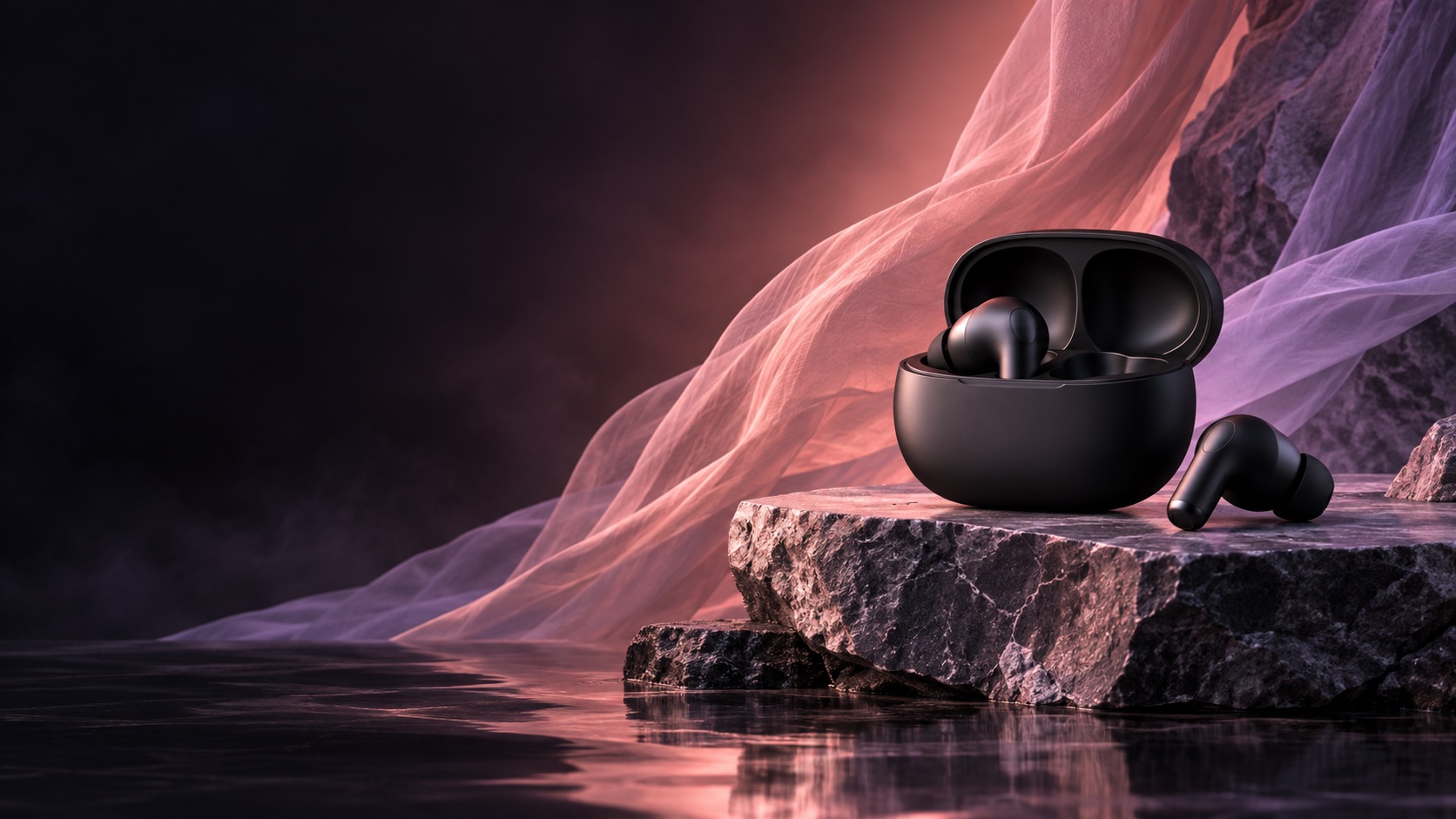
A product image with one clear subject and extra space around it gives the camera room to move.
Choose a camera move
| Camera move | Works well for | Main thing to check |
|---|---|---|
| Slow push-in | Products and portraits | Cropped edges |
| Pull-back | Rooms and wider scenes | Newly revealed details |
| Pan | Landscapes and wide photos | Bent horizons |
| Sideways tracking | Layered streets and sets | Distorted background objects |
| Fixed camera | Quiet environmental motion | Unwanted framing drift |
Choose one movement for the first attempt. A short clip is easier to judge when the camera has one clear job.
1. Slow push-in: bring a detail closer
Try this with a clear subject and a little space around it—a ceramic vase on a desk, for example. The camera moves toward the vase while the vase stays still.
The camera slowly moves closer to the ceramic vase on the desk.
Keep the vase stationary and centered, with its rim fully visible.
Maintain the soft window light. End on a steady closer view of the
glazed surface.
Check the edges of the subject as the shot progresses. If the rim leaves the frame, ask for a smaller move or start with a wider image. A push-in does not need to cover much distance; a modest change in framing may be enough to draw attention to the texture.
A short product clip can use a controlled camera move while keeping the product as the visual anchor.
2. Pull-back: show more of the setting
A pull-back moves away from the subject. It can suit an interior photo where the surrounding space matters as much as the object in the foreground.
The camera slowly moves backward from the armchair beside the window,
widening the view slightly. Keep the chair and existing furniture
stationary. Maintain the room's lighting and perspective. End with
the chair still prominent in the frame.
There is a catch: if the movement reveals space outside the original photo, the model has to create those details. Look closely at newly visible furniture, walls, and flooring. If they do not make sense, reduce the pull-back or use a wider starting image.
3. Pan: turn the view across a scene
For a wide landscape, try a gentle pan. The camera turns from a fixed position, directing attention from one part of the scene to another.
From a fixed position, the camera pans slowly to the right across the
lakeside scene. Keep the horizon level and the movement small. Gentle
ripples move across the water. Let the camera settle before the clip ends.
Pick one direction. Asking the camera to move left, reverse, and zoom in gives a short shot several competing jobs. Watch the horizon and shoreline. If they bend or shift unexpectedly, simplify the environmental motion and try a smaller pan.
4. Sideways tracking: reveal depth
A tracking shot moves the camera sideways rather than turning it in place. Try it with an image that has clear layers, such as a street with a nearby lamppost and buildings farther away.
The camera slides slowly to the right along the street, keeping its
viewing direction steady. The nearby lamppost passes across the frame
more quickly than the distant buildings. Keep the movement short and
the buildings stable.
The difference in movement between near and distant objects gives the shot a sense of depth. Check building edges, signs, and anything revealed behind the foreground object. Shorten the move if those areas become distorted.
5. Fixed camera: let the subject move
Camera movement is optional. For a quiet scene, a fixed view can make a small action easier to notice.
The camera remains fixed on the plant beside the open window. A light
breeze gently moves a few leaves, then they settle. Keep the pot,
windowsill, and background stationary. Maintain the original framing
throughout the clip.
Check whether the framing drifts even though you asked for a fixed camera. Also watch the leaves: they should not multiply or merge into one another. This is a useful option when you want motion without revealing new parts of the scene.
Make the direction specific
“Make it cinematic” leaves most of the shot undecided. Give your MiniMax AI image-to-video prompt a movement, a speed, and an ending instead.
Compare:
Make the vase look cinematic.
With:
Slowly move closer to the vase. Keep its rim in the frame and stop on a steady close view.
If the result needs work, change one instruction at a time. Our MiniMax H3 Max prompt tips explain how to keep actions manageable and replace vague descriptions with visible instructions.
Quick fixes for common camera problems
- The subject gets cropped during a push-in: reduce the distance of the move or begin with more space around the subject.
- A pull-back creates strange new objects: shorten the move so less unseen space needs to be generated.
- A fixed shot still drifts: reduce the subject's movement and repeat that the framing and camera position remain fixed.
Make one adjustment, generate another short test, and compare it with the previous clip. Changing several instructions at once makes it harder to tell what helped.
Try one movement with your photo
Choose the prompt closest to your scene and replace its subject details. Upload a photo to I2video, generate a short version, and watch the whole clip before deciding what to adjust. These prompts are starting points; your image and first result will show you what to refine next.
I2video
Turn your images into video
Try a focused MiniMax H3 Max prompt and create your first image-to-video clip.
Create video